
In today’s world, digital devices have become an integral part of our lives. From entertainment to work and school, it’s easy to spend hours in front of a screen. As a parent, I’ve been there—trying to balance allowing my kids the freedom to explore technology while ensuring they aren’t glued to their devices all day. That’s when I discovered the power of digital wellbeing and parental controls.
These tools help families set boundaries, track screen time, and ensure everyone’s tech habits stay healthy. If you’re wondering how to use these tools effectively, this blog will guide you through the features and how to implement them, whether for yourself or your children.
What Are Digital Wellbeing and Parental Controls?
Digital wellbeing is all about managing your relationship with technology. It allows individuals to understand their screen habits, track app usage, and take breaks when necessary. Parental controls, on the other hand, are tools designed to help parents set guidelines for their children’s digital activity, making it easier to ensure they are safe online.
Key Features for Individuals
If you’re looking to manage your own screen time, digital wellbeing tools are designed to track and measure your daily habits. Here’s a breakdown of the key features:
Dashboard
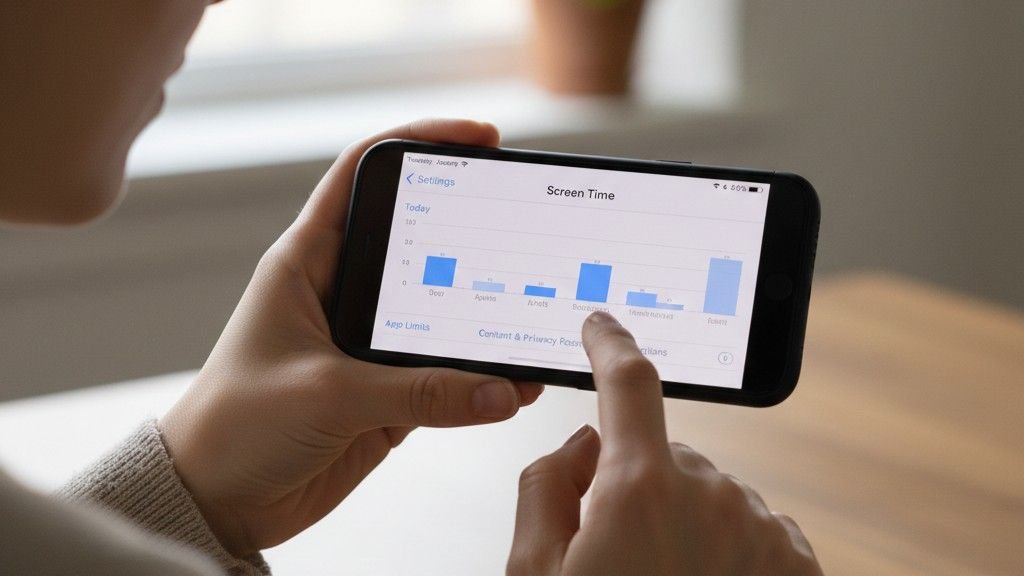
This tool allows you to see a daily or weekly summary of your app usage. You can track the number of times you unlock your phone and the total number of notifications received. This gives you an overall view of how you’re spending your time on your device.
App Timers
With this feature, you can set limits for individual apps. Once the set limit is reached, the app’s icon grays out, and it pauses until midnight. It’s a simple yet effective way to control how much time you spend on apps like social media, gaming, or entertainment.
Bedtime Mode
Bedtime Mode helps reduce distractions at night by silencing notifications and turning your screen to grayscale. This is perfect for helping you unwind before bed without the temptation of looking at your phone.
Focus Mode
Focus Mode allows you to pause distracting apps so you can focus on work or study. You can set it to turn on manually or according to a schedule, helping you stay productive without the constant interruptions of social media or notifications.
Key Features for Parents: Managing Your Child’s Digital World
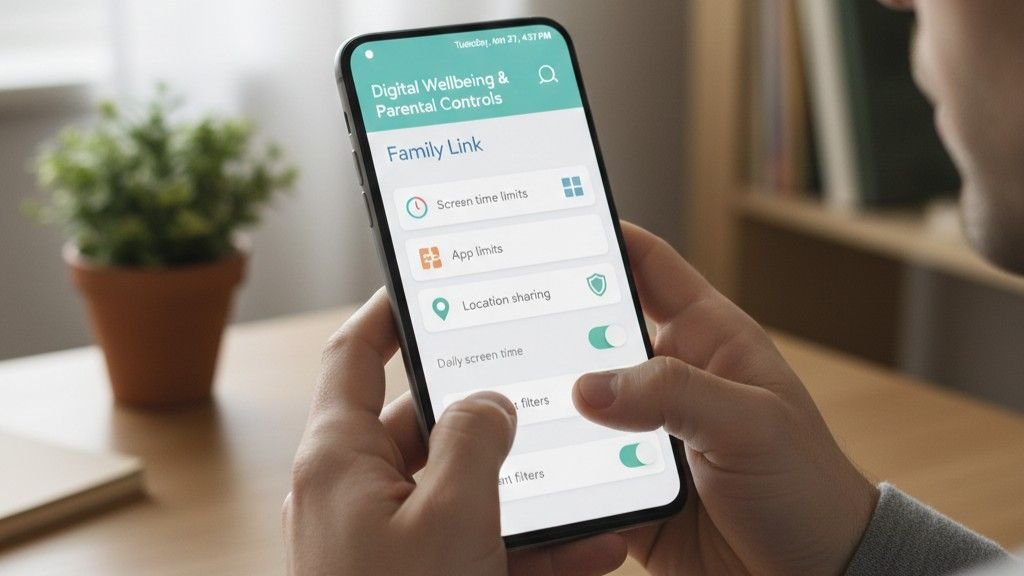
As a parent, it’s important to have tools that allow you to manage your child’s device usage, and Google Family Link offers a great solution. Here’s how it works:
Screen Time Limits
You can set daily usage limits for your child’s device, along with scheduled “Downtime” when the device will be locked. This ensures that your child doesn’t stay on their device for too long, encouraging them to engage in other activities.
App Management
Google Family Link allows you to approve or block apps from the Google Play Store. You can also view how much time your child is spending on specific apps, helping you keep track of their digital habits.
Remote Locking
If your child needs a break, you can lock their device remotely from your phone. This feature ensures they’re not distracted when it’s time for a break, such as during meals, study sessions, or bedtime.
Location Tracking
With location tracking, you can view the location of your child’s device on a map. This feature is particularly useful if you need to check where they are, whether they’re on their way home from school or out with friends.
Content Filters
Google Family Link also allows you to restrict mature content on apps like Google Search, Google Chrome, and YouTube. This ensures that your child is only exposed to age-appropriate content while browsing the web.
How to Get Started with Digital Wellbeing and Parental Controls
Setting up digital wellbeing and parental controls is straightforward, and it’s an important first step in managing your tech habits. Here’s how you can get started:

Access Settings
Open the Settings app on your Android device or iOS device. If you have an Android, scroll down to find the Digital Wellbeing & parental controls option. For iPhone users, look for Screen Time in the Settings menu.
Find the Tool
Tap on the Digital Wellbeing & parental controls option to access the features. If you’re setting up parental controls, tap on Set up parental controls. This will guide you through the process of installing Google Family Link on your device.
Setup Supervision
For parents, Google Family Link is essential. You’ll need to download the app to both your device and your child’s device. Follow the prompts to set up supervision. You can then begin managing your child’s screen time, app usage, and content filters right from your phone.
For Apple users, similar functionality can be found under Screen Time in the iOS Settings. This allows you to manage your child’s usage and set up content restrictions.
Frequently Asked Questions
Q1: How can I ensure my child isn’t spending too much time on their phone?
One of the best ways to manage your child’s screen time is by using parental control features like screen time limits and downtime schedules. With these tools, you can set clear boundaries and ensure your child isn’t spending excessive time on their device. You can also encourage tech-free activities like playing outside or reading.
Q2: Are digital wellbeing tools available on all devices?
Yes, both digital wellbeing features and parental controls are available on most devices. Android users can access these features through Google Family Link, while Apple users can find similar tools under Screen Time in the iOS settings.
Q3: Can I monitor my child’s online activity remotely?
Absolutely! Google Family Link lets you monitor your child’s digital activity remotely. You can view how much time they spend on specific apps, approve or block apps, and even lock their device remotely. This makes it easy to stay on top of your child’s online habits.
Q4: How do I set a bedtime for my child’s device?
To set a bedtime mode for your child’s device, simply go into Google Family Link and select the child’s account. From there, you can set “bedtime” hours during which the device will be locked and notifications will be silenced. This helps your child wind down for the night and ensures they aren’t distracted by their phone.
Creating Healthy Digital Habits for Your Family
Incorporating digital wellbeing and parental controls into your family’s routine can be a game changer. These tools empower both parents and individuals to maintain a healthy relationship with technology while ensuring safety online. Whether you’re monitoring screen time for your kids or just trying to disconnect from your phone after a long day, digital wellbeing tools make it easier to stay in control.
So, go ahead—set those screen time limits, use those content filters, and enjoy a healthier, more balanced approach while using smart home tech. Trust me, your mind (and your family) will thank you for it!